
Finding the right password manager can feel overwhelming with so many options available. A reliable password manager helps create, store, and autofill strong, unique passwords, improving digital security with ease and convenience.
Using one reduces the risk of password-based attacks and saves time managing multiple accounts.
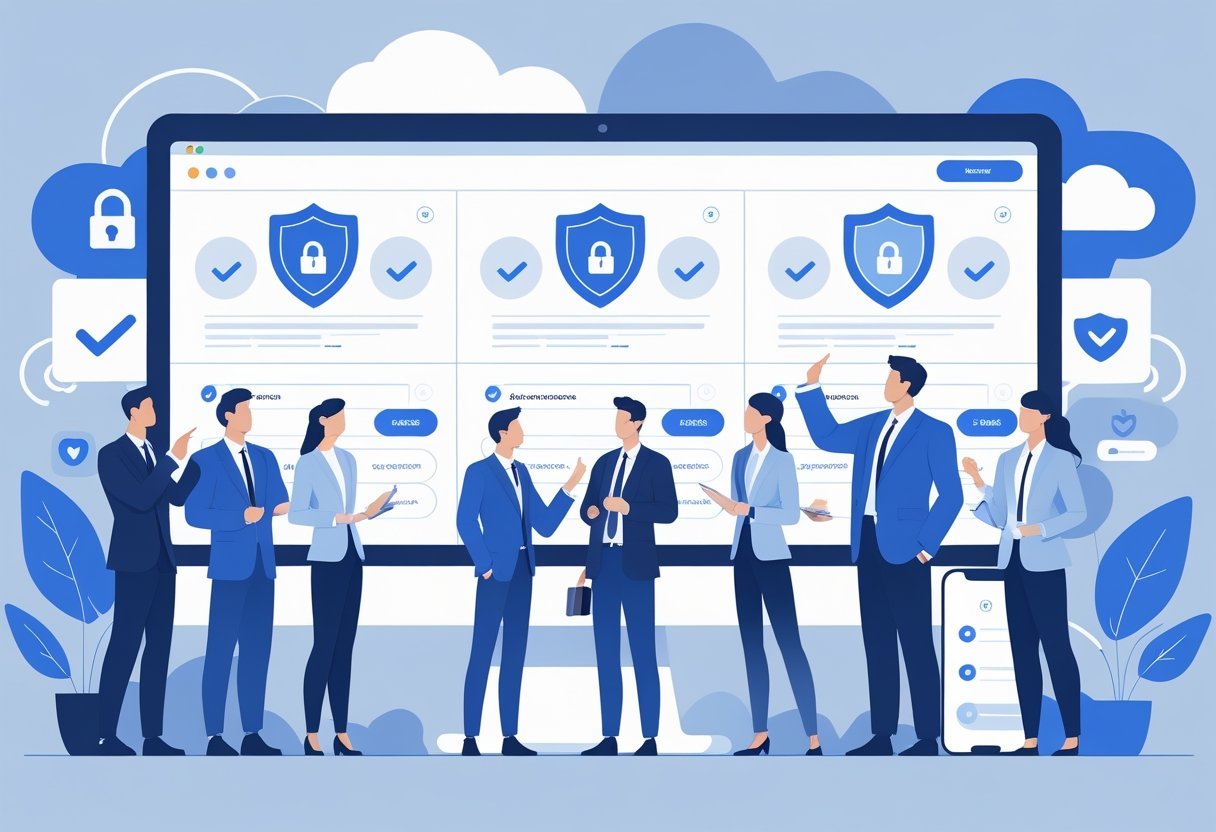
Not all password managers offer the same features or levels of security. Some focus on advanced protections, while others emphasize ease of use or affordability.
This comparison looks at different password management solutions to help readers choose the best fit for their needs and online habits.
Key Takeaways
- Strong password managers create and store unique passwords securely.
- Features and security levels vary between free and paid options.
- Choosing the right tool depends on individual security needs and convenience.
What Is a Password Manager and How Does It Work?
A password manager stores and organizes login information securely. It helps create strong, unique passwords and keeps them safe behind a single key.
It also supports newer methods like passkeys and passwordless login to improve security and ease of use.
Core Functions of Password Managers
Password managers generate strong, unique passwords for every account. This reduces the risk of using weak or repeated passwords across sites.
They store these passwords in a secure database known as a password vault. When a user visits a website, the manager can fill in the login details automatically.
Many password managers sync passwords across devices through encrypted cloud storage. This allows access on phones, tablets, and computers.
Some also offer secure password sharing, letting users share credentials safely with trusted contacts. This keeps sensitive data protected even when shared.
Password Vault and Master Password Explained
The password vault is the secure place inside the manager where all passwords are kept. It uses encryption to block access from unauthorized users.
To open the vault, users must enter a single master password. This master password is the only password users need to remember.
It unlocks access to all stored credentials. Hence, it must be very strong, as it protects the entire vault.
Password managers use additional security layers like two-factor authentication to protect the master password. Because the vault holds everything, losing the master password can lock users out of their accounts permanently.
Passkeys and Passwordless Login
Passkeys are a newer login method that replaces traditional passwords with cryptographic keys. Stored on devices, passkeys authenticate users via biometrics or PIN codes.
This reduces risks from phishing and password theft. Passwordless login methods remove the need to manually enter passwords.
Users can sign in using face recognition, fingerprints, or secure tokens linked to the device. Many modern password managers support passkeys and passwordless login to improve security and make signing in faster.
These methods work alongside traditional passwords for flexible, secure access options.
Essential Features to Compare in Password Managers
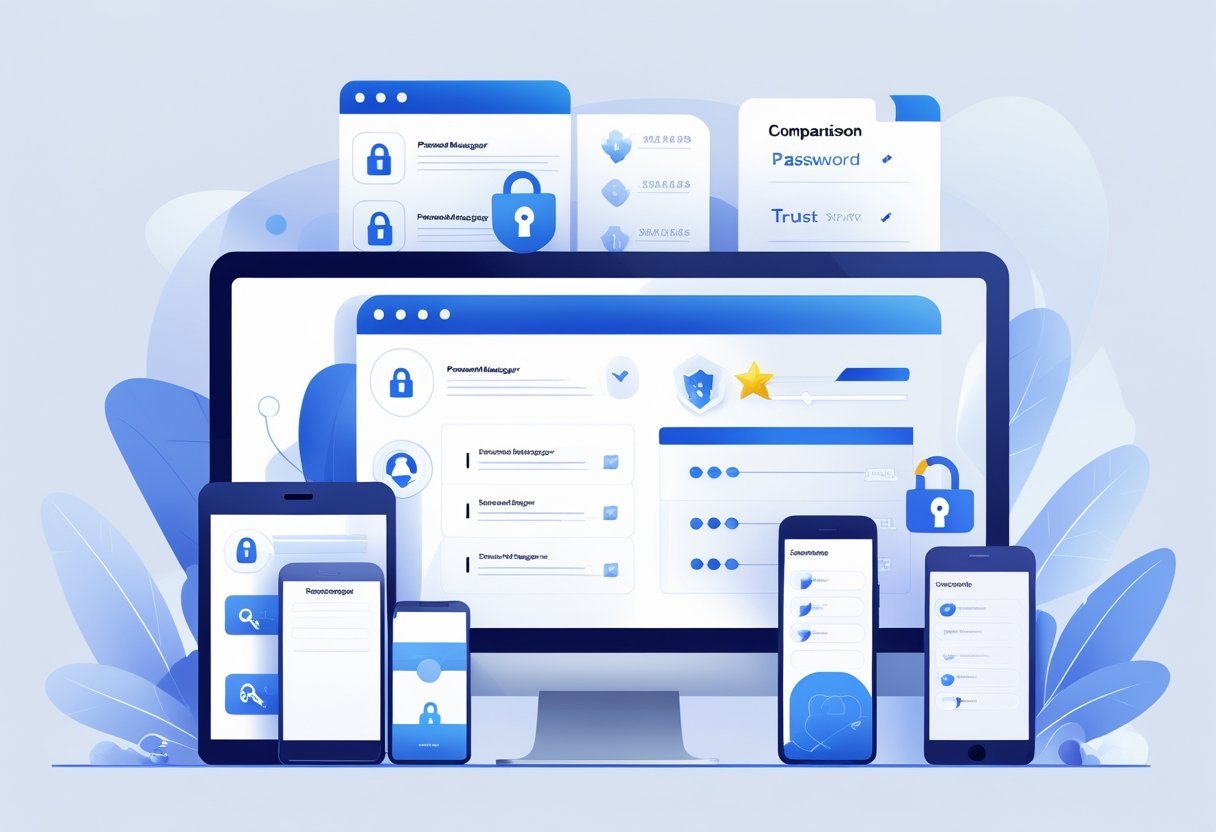
A strong password manager should protect data with solid encryption, work across all devices, create and fill passwords easily, and offer clear security reviews. These features ensure passwords stay safe and managing accounts is simple.
Encryption and Data Security
Encryption is the core of password security. Most top password managers use AES-256 encryption, which locks passwords in an encrypted vault.
This level of encryption is strong enough to protect data from hackers. Passwords, notes, and files should all be encrypted, both when stored on a device and during cloud syncing.
Encrypted cloud storage allows users to access passwords on different devices without exposing them in plain text. Locally encrypted file storage adds extra safety when working offline.
The best managers also support biometric authentication like fingerprint or facial recognition, plus Windows Hello for quick, secure access.
Device and Platform Compatibility
Password managers must support all popular operating systems: Windows, macOS, Linux, Android, and iOS. Cross-device sync ensures passwords updated on one device appear everywhere instantly.
Compatibility with major browsers such as Chrome, Firefox, Safari, Opera, Brave, and Vivaldi is important for seamless password saving and autofill. Users should check if the password manager has dedicated apps or plugins for their devices and browsers.
Full support means less manual work entering passwords and better protection across platforms.
Password Generation and Form Filling
A key feature is an integrated password generator that creates strong, unique passwords automatically. This helps prevent reuse and weak passwords.
Users can customize settings like length and character types to meet specific site rules. Good password managers also offer form filling to save time.
They auto-fill login forms, credit cards, and personal info across websites. The accuracy and speed of the form filling vary, so reliable performance across multiple browsers is crucial.
Security Audits and Privacy Policies
Regular security audits by external experts show a password manager’s commitment to safety. These audits check the encryption, data handling, and overall security practices.
Users should look for clear summaries of audit results from reputable firms. A transparent privacy policy explains what user data is collected, stored, or shared.
The best managers keep zero-knowledge policies, meaning they cannot see or access stored passwords. Understanding these details helps users trust the service and avoid risks.
Types of Password Managers: Free vs. Paid vs. Built-In
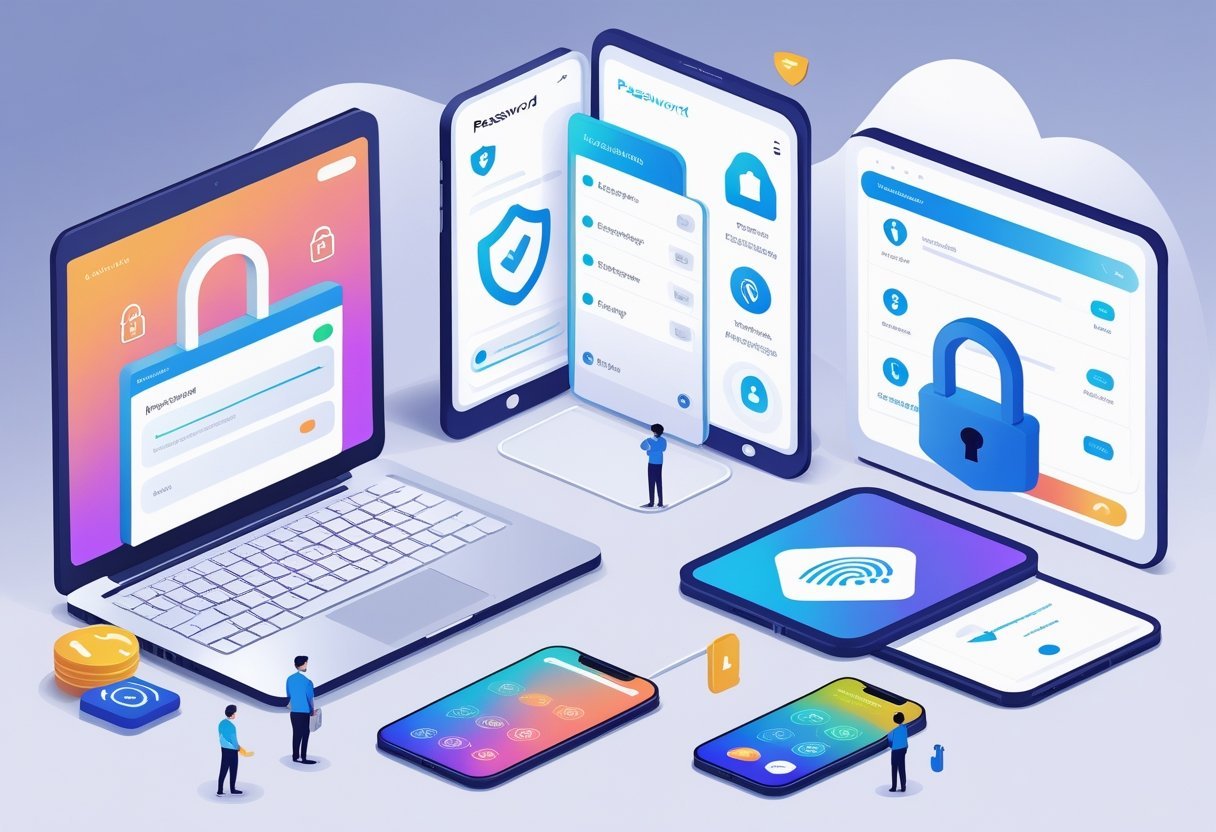
Password managers vary in features, security, and convenience based on their type. Choosing the right one depends on factors like needed security, ease of use, and budget.
Some offer advanced tools, while others focus on basic password storage.
Free vs. Premium Password Managers
Free password managers provide essential services like storing and generating passwords. They are good for casual users who want basic protection without cost.
However, free versions often limit features such as device syncing, additional storage, or emergency access. Paid password managers offer more advanced tools.
These include two-factor authentication, secure sharing options, dark web monitoring, and priority customer support. Popular premium services like 1Password and LastPass provide a smoother experience with strong encryption and wider compatibility.
Users paying for these services benefit from regular updates and stronger security features. But upgrading should be based on actual needs since not all premium additions are necessary for everyone.
Built-In Browser and OS Managers
Built-in password managers come integrated with browsers like Google Chrome or operating systems like iOS. Google Password Manager, for example, can generate, save, and autofill passwords across devices using the same Google account.
These managers are convenient and free but may lack advanced security features found in dedicated apps. They usually support basic alerts for weak or reused passwords but often do not offer multi-factor authentication.
While suitable for many users, built-in managers may not be ideal for those wanting more control or advanced protection options.
Open-Source and Self-Hosted Options
Open-source password managers like KeePass and KeePassXC allow users full control over their data. These tools are free and let users store passwords locally or on private servers, reducing reliance on third-party services.
This appeals to tech-savvy individuals or businesses worried about cloud privacy. However, open-source options often require more manual setup and maintenance.
They lack some of the polished user interfaces and automatic sync features found in paid products. Users should be comfortable with handling backups and updates themselves.
Open-source tools offer transparency and customization, which can increase trust and security if managed properly.
In-Depth Comparison of Leading Password Managers
Password managers vary in security features, pricing, and ease of use. Some focus on strong encryption and open-source access, while others offer advanced tools like passwordless logins or family plans.
Users should consider device compatibility and alert systems for data breaches when choosing.
1Password vs. Dashlane vs. Bitwarden
1Password offers strong security with easy-to-use apps and vault sharing. It supports two-factor authentication and has a travel mode that hides sensitive data when crossing borders.
Its subscription is mid-priced but includes good customer support and cross-platform sync. Dashlane stands out with built-in VPN and dark web monitoring alerts.
It uses AES-256 encryption and offers a simple interface. The premium plan is pricier but includes unlimited password storage and VPN usage.
Bitwarden appeals to those wanting open-source software. It has strong encryption and a free tier with many features.
Paid plans are affordable, with options for families and businesses. Bitwarden supports cloud and self-hosted options, making it flexible.
NordPass, Keeper, and Proton Pass
NordPass uses zero-knowledge encryption and biometric login. It has a clean interface and offers password health reports.
Pricing is competitive, and it supports multi-device use with offline access. Keeper provides robust security with breach monitoring and encrypted file storage.
It supports biometric login and a secure messaging feature. Keeper offers enterprise-grade options but works well for personal users too.
Proton Pass is newer but focuses heavily on privacy and open-source code. It uses end-to-end encryption and doesn’t collect user data.
Proton Pass is suited for privacy-conscious users who want straightforward, no-frills features.
RoboForm, Zoho Vault, and Other Options
RoboForm is praised for its form-filling capabilities along with password management. It supports passwordless login and offers plans under $1/month.
Its free version is limited but good for beginners. Zoho Vault is tailored more for business users but is easy enough for individuals.
It provides encrypted password sharing and detailed access controls. Zoho integrates well with other Zoho workplace apps.
Other options like Total Password, LogMeOnce, and Enpass offer features such as offline storage, multi-factor authentication, and flexible pricing. These tend to appeal to users with specialized needs or tighter budgets.
Comparing these on security features, price, and user interface helps find the right fit.
Advanced Security and Privacy: Protecting Your Online Accounts
Password managers now include strong tools to protect accounts beyond simple passwords. These features help stop hackers, alert users to risks, and provide safe options for sharing or recovering passwords.
Multi-Factor and Biometric Authentication
Multi-factor authentication (MFA) adds layers of security by requiring more than just a password to log in. This includes two-factor authentication (2FA) methods like time-based one-time passwords (TOTP) generated by authenticator apps, hardware security keys such as YubiKey, or backup codes.
These options reduce the chance of unauthorized access from stolen passwords. Biometric login, such as fingerprint or facial recognition, offers a quick and secure way to unlock password vaults while keeping them locked from strangers.
Many password managers support biometrics alongside MFA for stronger protection. Security keys provide phishing-resistant login, blocking fake websites from stealing credentials.
Data Breach Monitoring and Protection
Data breach monitoring scans for exposed credentials linked to a user’s accounts. Password managers often include dark web monitoring or breach scanners that alert users if their information appears in data leaks.
Early warnings allow users to change passwords before hackers exploit them. Some managers add phishing protection by detecting suspicious login attempts or fake sites.
This helps prevent users from falling victim to scams. Continuous breach monitoring helps keep digital identities safer by turning reactive password changes into proactive security.
Secure Sharing and Emergency Access
Secure sharing lets users send passwords or login info safely. Password managers typically use end-to-end encryption during sharing, preventing interception.
This feature is useful when families or teams need access without revealing passwords openly. Emergency access allows trusted people to enter an account if the owner is unavailable.
It often requires approval or waiting periods to avoid misuse. Password managers offer control over who can gain emergency access and what data they can reach.
Email masking can also protect shared contacts by hiding real addresses during collaboration.
Choosing the Best Password Manager for Your Needs
Selecting the right password manager depends on how easily it works, what it costs, and the support available if something goes wrong. Each factor helps ensure better security and a smoother experience when managing passwords across devices.
User Experience and Ease of Use
A password manager app should be simple to use on both desktop and mobile apps. Good apps offer auto-login features that save time and reduce login errors.
Clear interfaces help users manage password storage without confusion. Password health tools scan for weak or repeated passwords, helping maintain good password hygiene.
Compatibility is key. A manager that works across browsers and devices ensures users can access their passwords anywhere.
Cybersecurity experts recommend apps with quick setup and intuitive navigation to keep online security strong without extra hassle.
Pricing and Subscription Models
Price varies widely among password managers, with some offering free versions, while others require paid subscriptions.
Many top password management solutions provide tiered plans, balancing cost with features like encrypted storage, unlimited devices, or family sharing.
For those focused on value, less than $1 per month can secure passwordless logins, as seen in leading apps.
Users should compare prices alongside features like multi-factor authentication and password health tools to get the best return on investment.
Customer Support and Recovery Options
Reliable customer support is crucial for resolving issues like syncing errors or password recovery. Email support is common, but some services include live chat or phone support to speed up help.
The ease of account recovery, such as resetting master passwords or accessing stored credentials after device loss, varies among providers. Users should pick password managers that offer clear, accessible support and efficient recovery tools to maintain digital security under all circumstances.